



If you are using Android phones, you might have noticed a GREEN DOT at the TOP RIGHT CORNER appears on your phone.
The Green Dot pre-existed in Apple’s iPhones before. Android has rolled out this feature with its Android 12 release.
WHY THERE IS A GREEN DOT APPEARS ON MY PHONE
The Green Dot feature is usually turned off by default on your phone. It will only appear in apps requiring your microphone and camera permission.
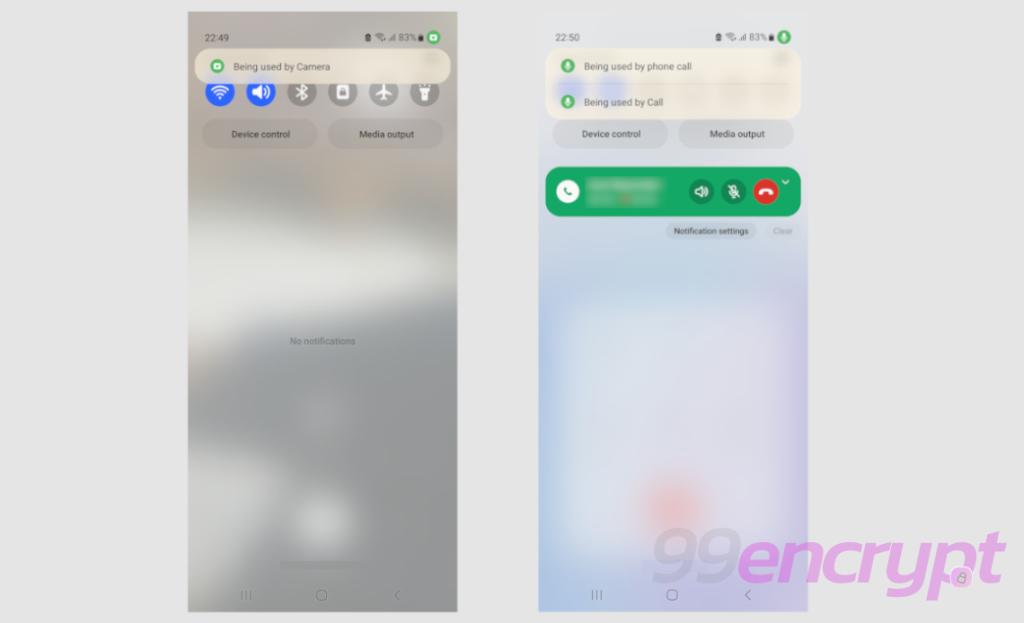
Android phone green dot will appear while using Camera or Microphone (99encrypt)
It will appear as a precaution to ensure that the app uses your permission to use a camera or microphone.
For instance, if you have downloaded a tennis game from Google Play and each of the times that access to the app and the Green Dot appears on your phone.
Then, there are chances that the tennis app has an issue and may collect information without your knowledge.
HOW TO CHECK WHICH APPS REQUIRES PERMISSION TO GREEN DOT ACCESS
Two steps can help you check the apps that are using permission to access your Camera and microphone:
Step 1
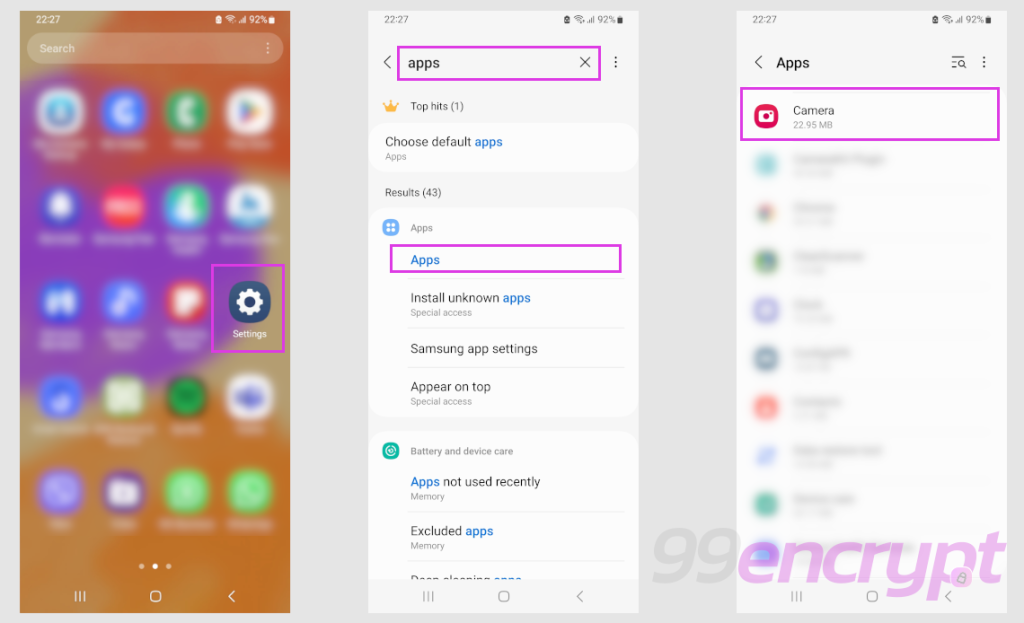
Steps to check Android phone green dot from settings (99encrypt)
You can quickly check while visiting the Settings on your phone. Then, Apps and tap on the app that you would like to review for its required permission.
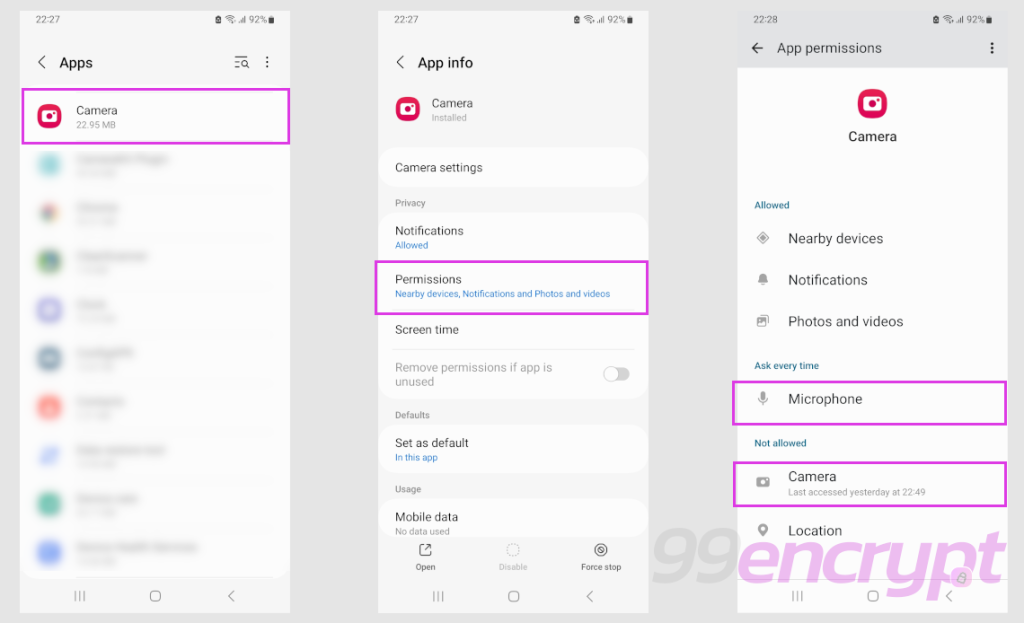
For camera app you can check the permission for Microphone and Camera (99encrypt)
While you access the app’s permission settings, you can track the permission from the “Allowed” and “Not Allowed” lists.
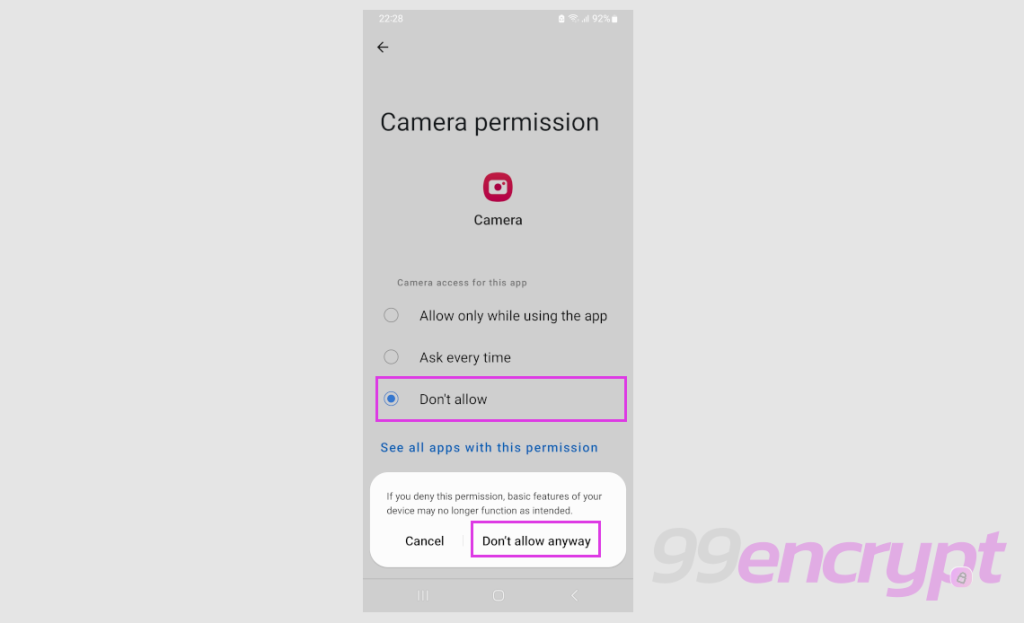
There are options to select whether to allow or not (99encrypt)
If an app uses a camera and microphone, it will appear in the “Allowed” list. You have the option to revoke the permission.
Step 2
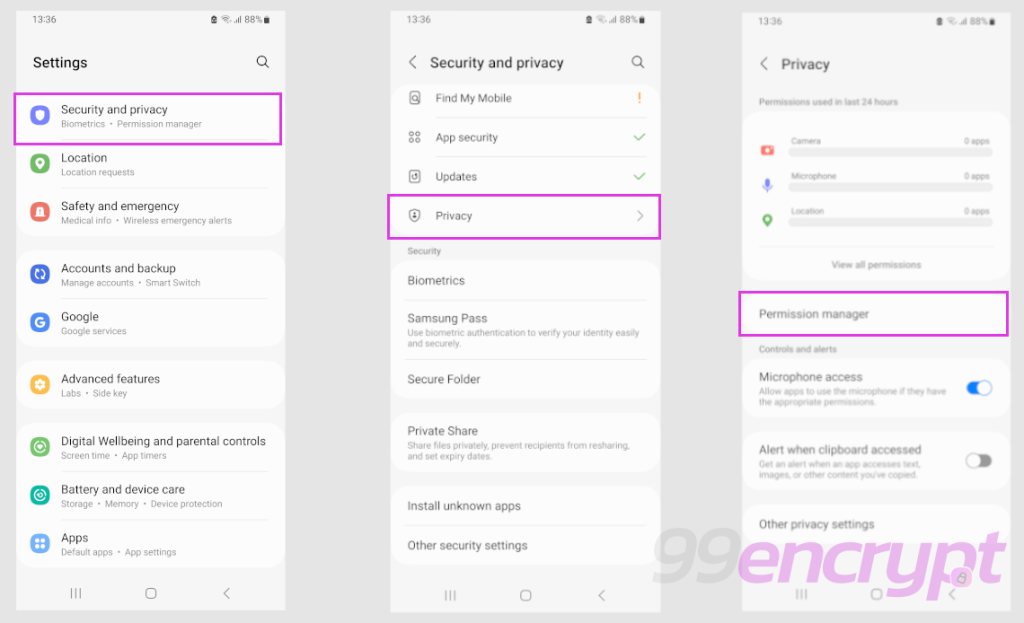
There are options to check from Privacy and Settings (99encrypt)
Another option to find out if you are using a Microphone and Camera is to find out from the Security and Privacy option on your phone’s Settings menu.
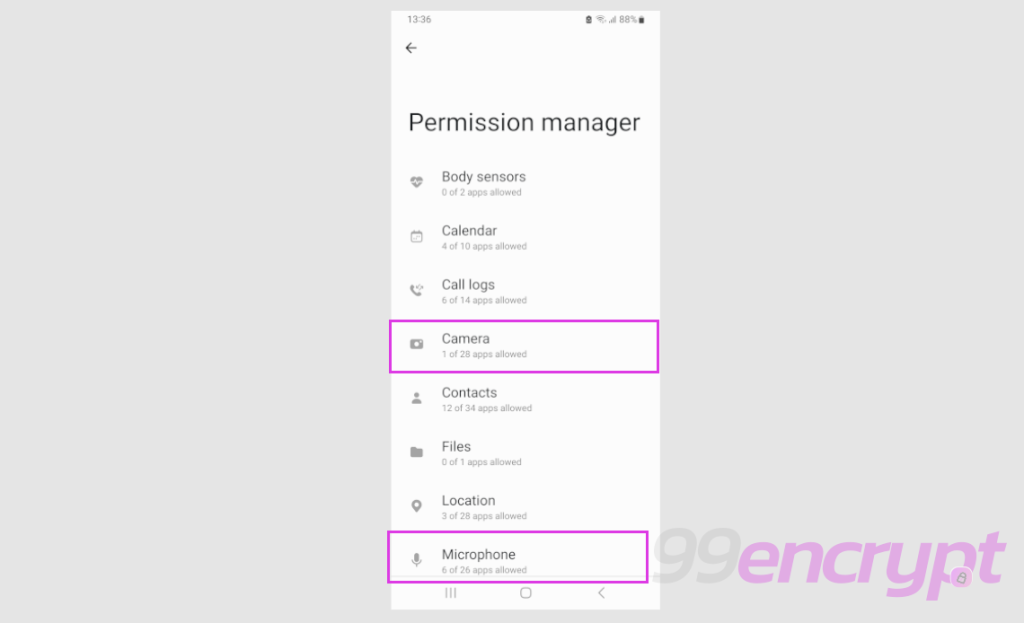
You can check how many apps are using permission for Microphone and Camera (99encrypt)
You can find those while visiting from the Settings menu and Security and Privacy. Then, you will need to find out the Privacy option and Permission Manager after that.
From the Permission Manager option, you can navigate which app is accessing from your phone, either microphone or Camera. You can easily turn off that app to access the microphone or Camera on your phone.