
Skype is one of the leading instant video messaging applications that helped revolutionise other instant messaging applications, for example, WhatsApp.
Like many years back, we had to follow old custom rules like creating a Skype account, downloading the application, and logging in with the user-id and credentials.
But thankfully, this has now changed. You will no longer need to download Skype or create an account before making calls.
You will now have the option to use the online version of Skype for free meetings.
We will discuss how to use this.
STEPS TO USE ONLINE VERSION OF SKYPE FOR FREE MEETINGS
If you wish to use Skype online, you must follow a few steps to connect.
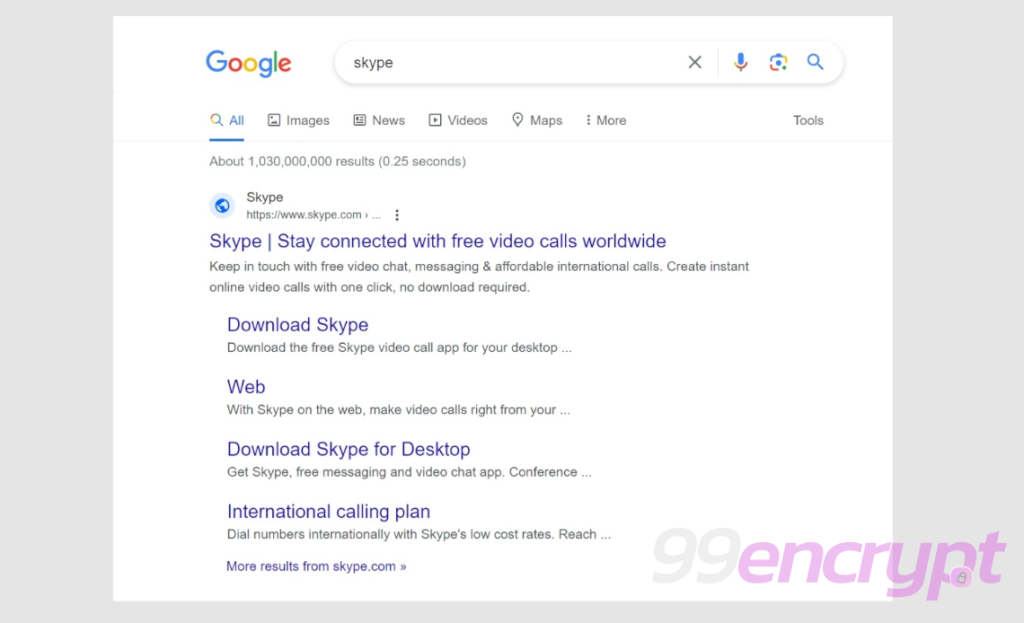
From Google or any other search engine, type the keyword “Skype” and click on the link that comes at the first.
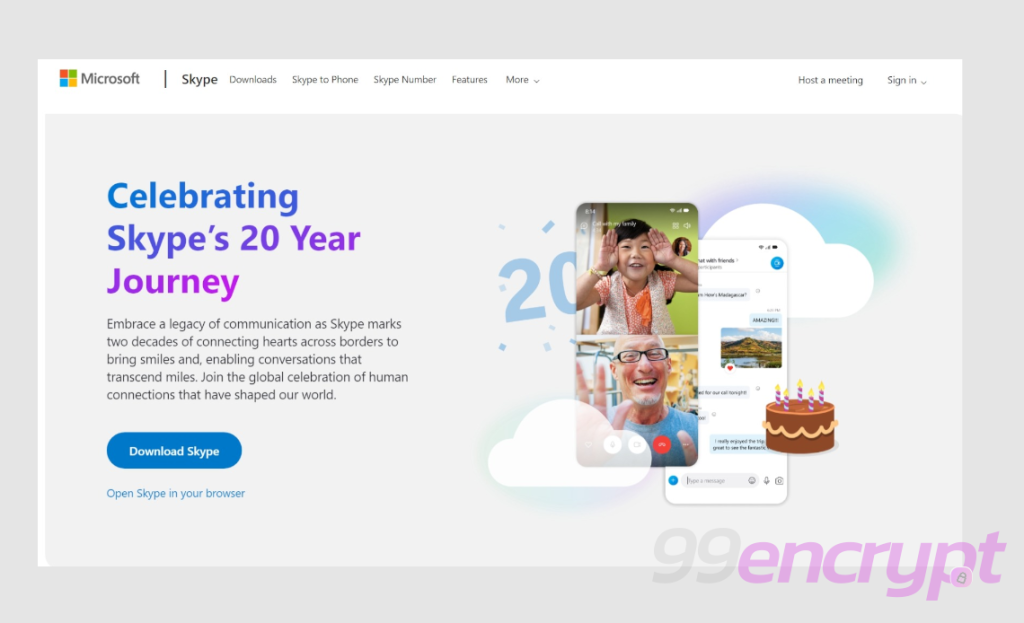
If you do not wish to Download Skype and use it for free, click “Host a meeting”.
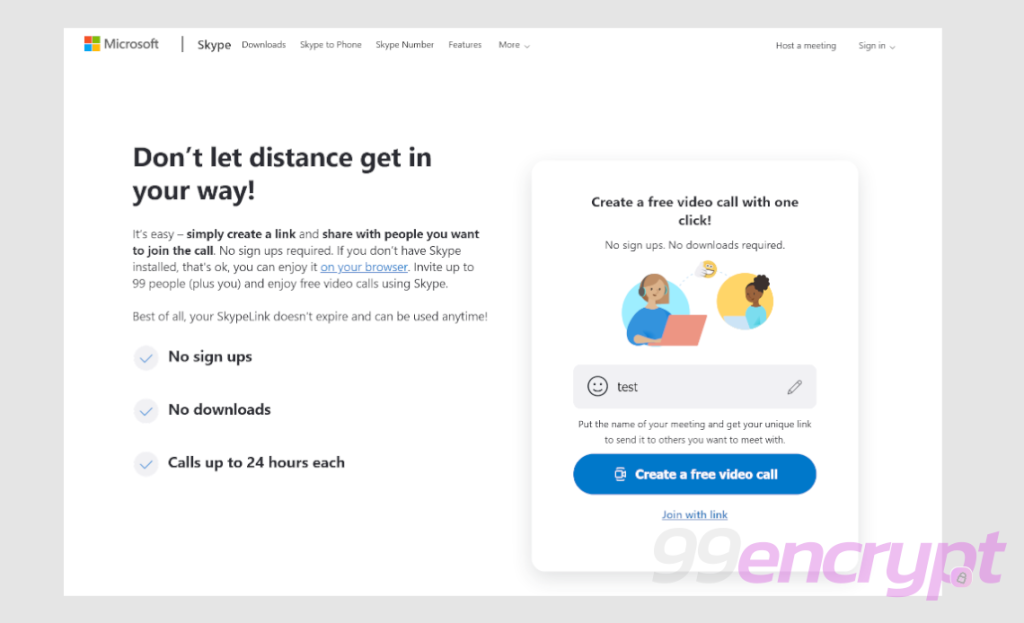
Once the signup page opens, type anything for registration, then hit “Create a free video call”.
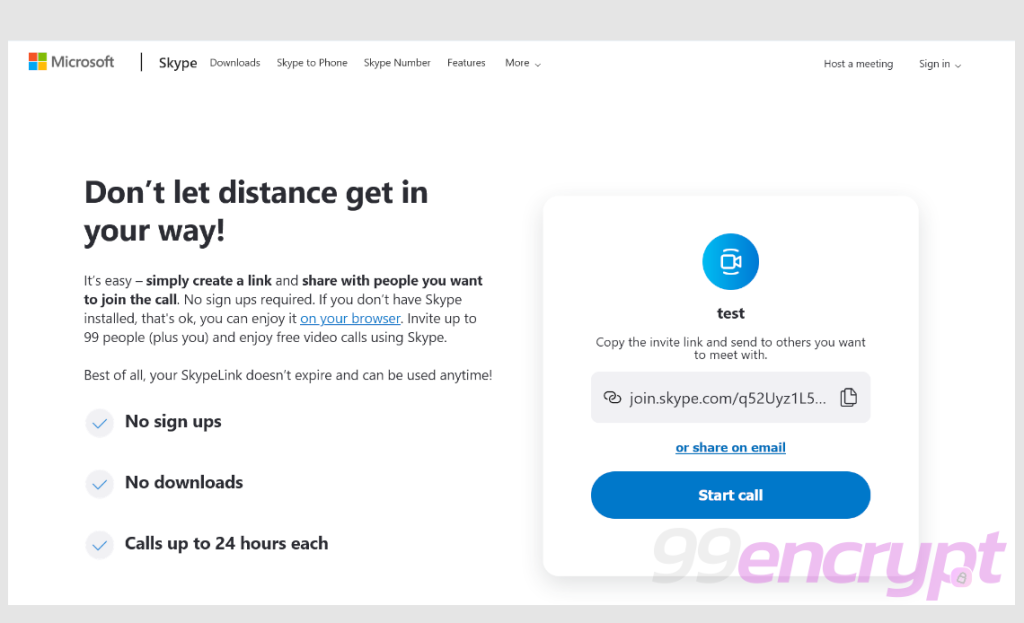
After that, it will generate a link to copy. You can share links with multiple people for invitation (up to 99 people at the moment).
Alternatively, you can start the call immediately while clicking “Start call”.
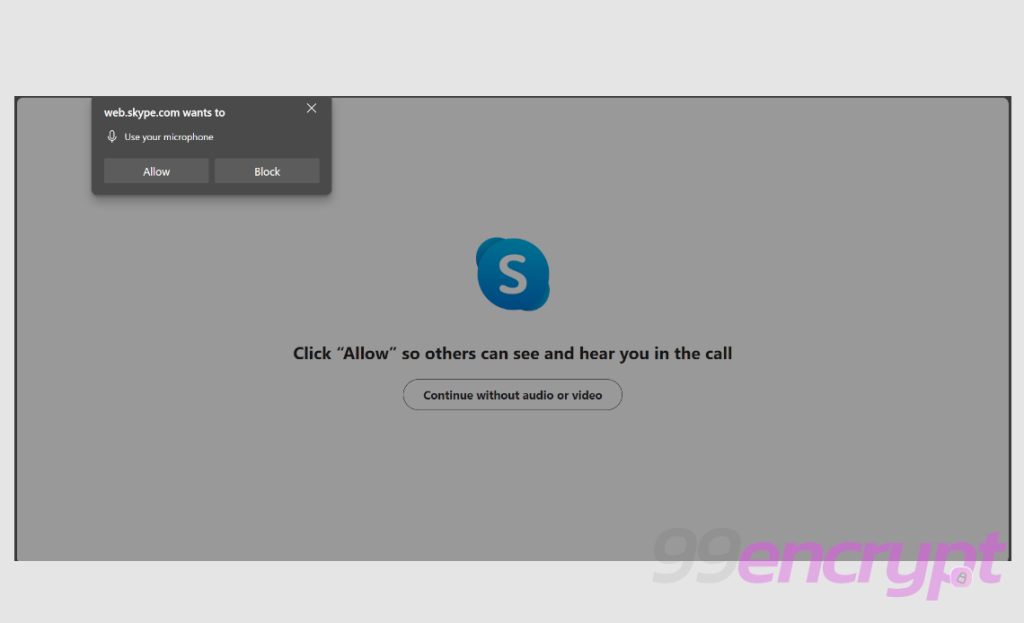
On the next screen, it will ask you for microphone and camera access. If you do not wish to approve this, click “Continue without audio or video”.
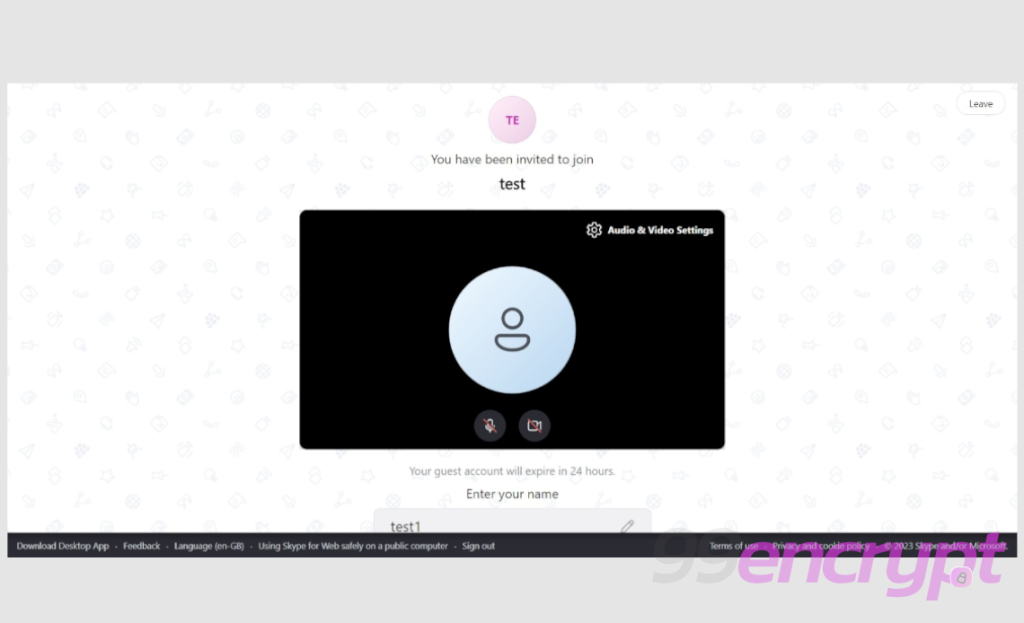
Before proceeding in the meeting room, it will have an interface similar to this.
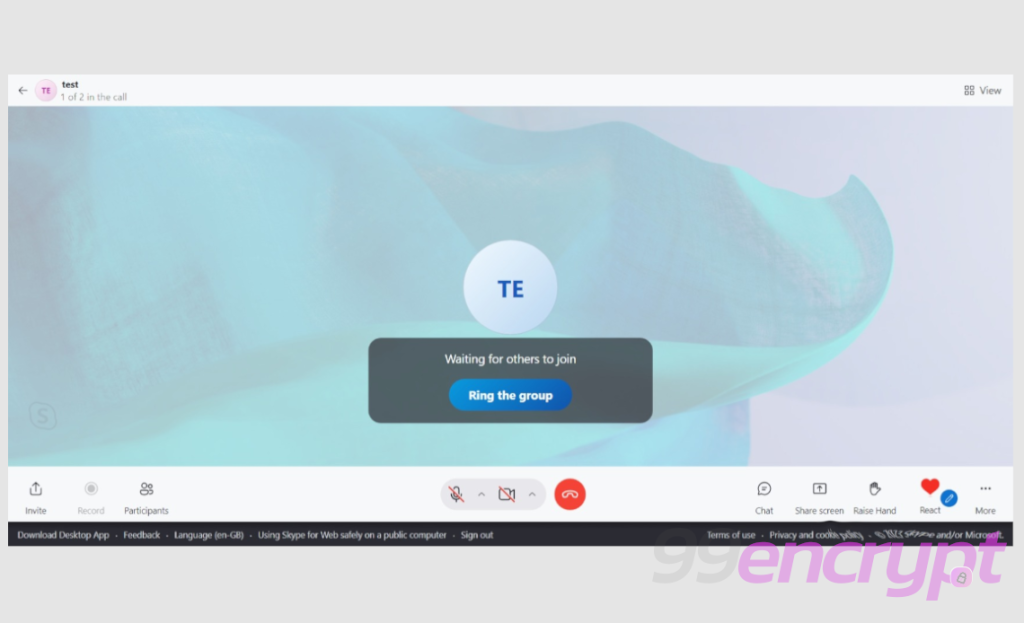
Once you join the meeting room, it will have an interface similar like this.
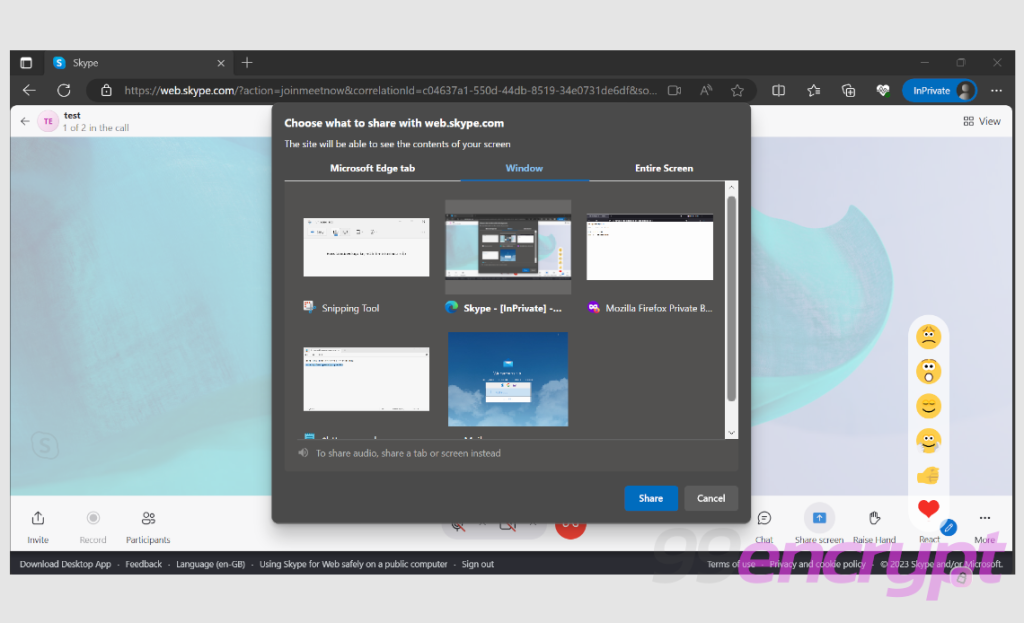
You will notice different features, including inviting others, adding more participants, starting with a chat and sharing your screen.
Additionally, it will allow you to record the session to capture the moment and share it with others.
You can join and start using Skype for free online from this link.