
Undoubtedly, WhatsApp is one of the world’s most popular instant messaging apps, attracting nearly 487.5 million users across the globe.
The latest data from World Population Review shows.
However, many of us are familiar with WhatsApp with a mobile phone or tablet.
But there are some ways that will help you use or let you open WhatsApp web in the browser.
STEPS TO OPEN WHATSAPP WEB IN THE BROWSER
In order to, OPEN WHATSAPP WEB IN THE BROWSER, here are some of the most critical steps that you will need to follow
Step 1
If you already have a WhatsApp account, then you can access that from WhatsApp Web from one of the browsers.
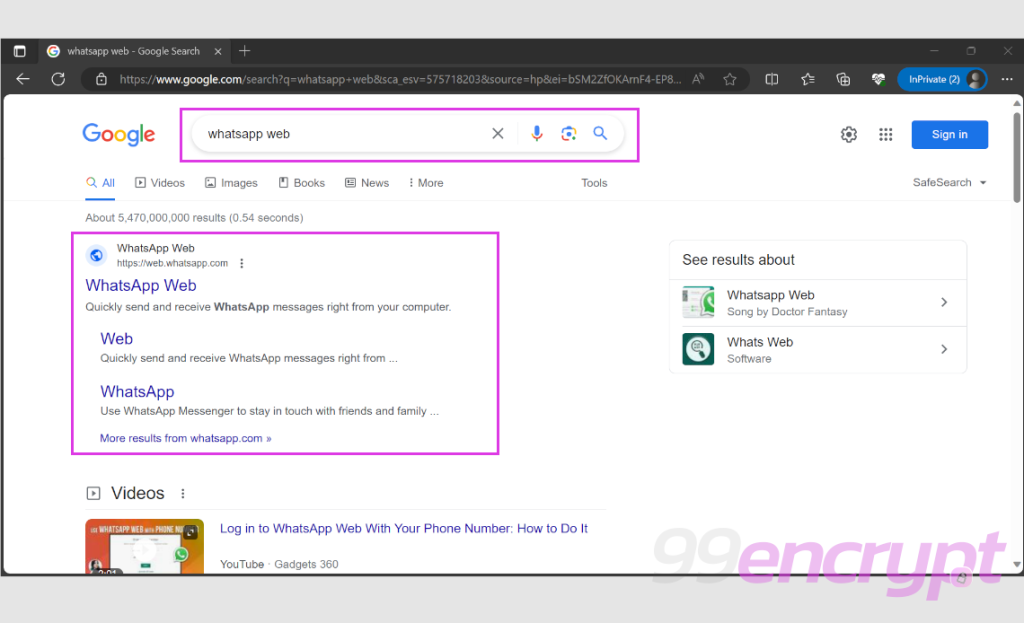
All you need to do is visit google.com and then type the keyword WhatsApp web on the search bar. Otherwise, you can access it from this link.
Alternatively, you can access directly from WhatsApp’s Weblink from web.whatsapp.com
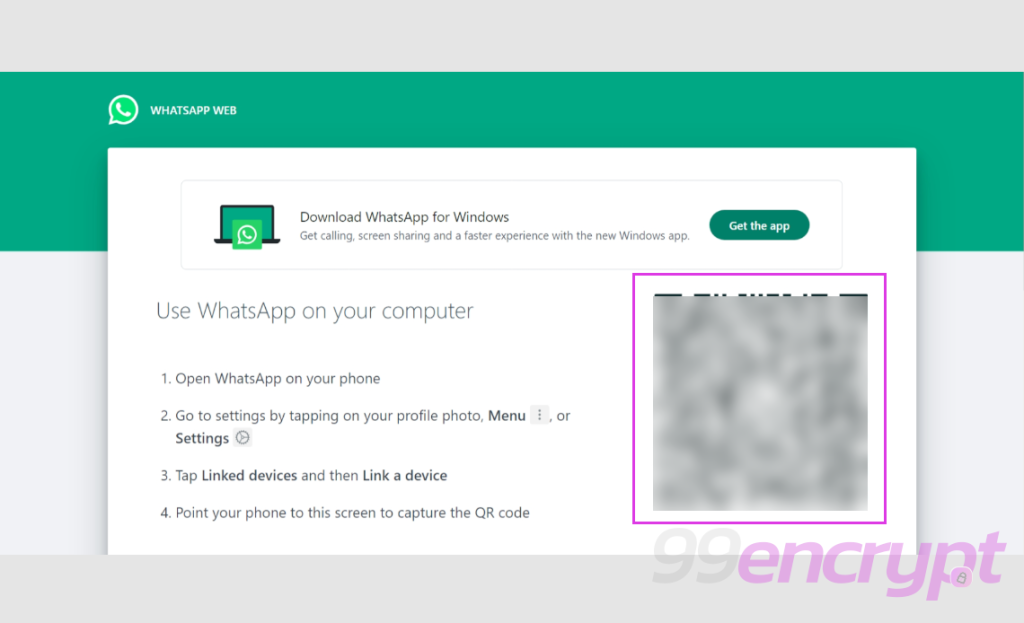
You will be required to scan the QR code displayed on the screen.
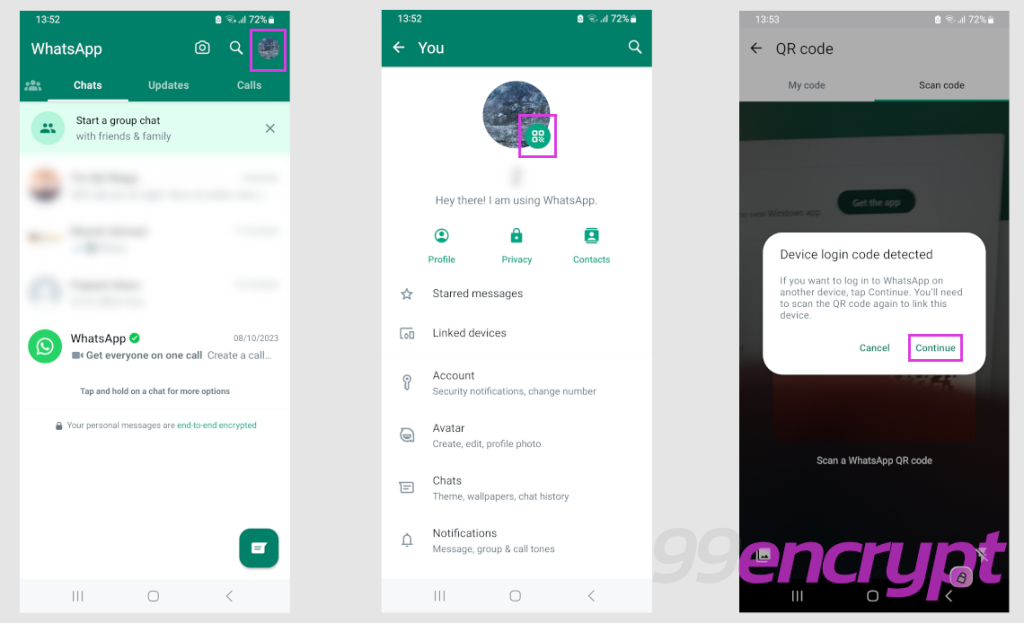
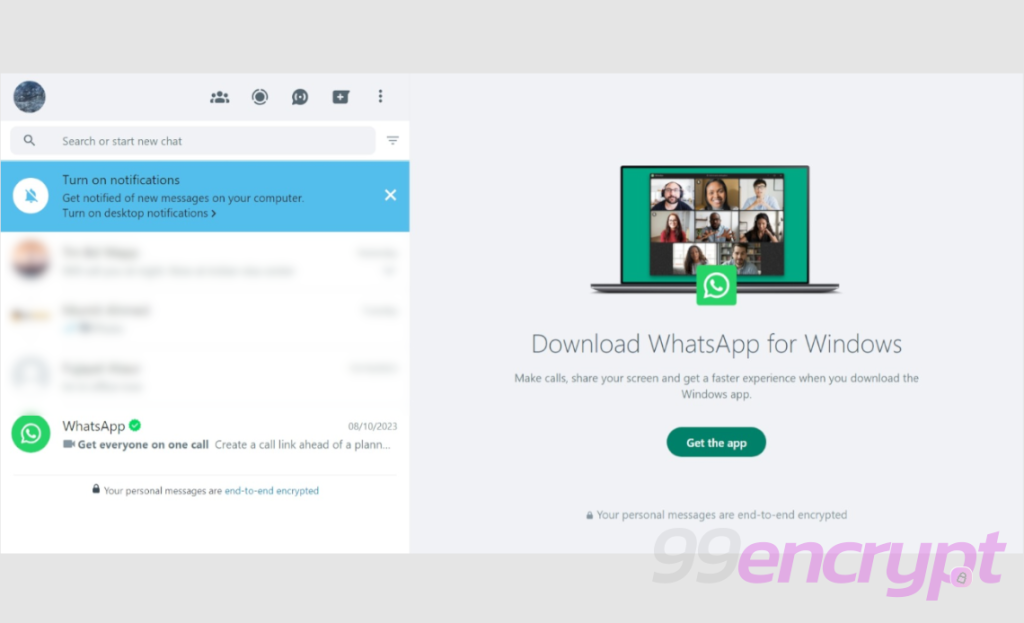
Once you scan the QR code, it will let you access your WhatsApp account.
You can check whether it is connected or not from Linked Devices and then Link a device.
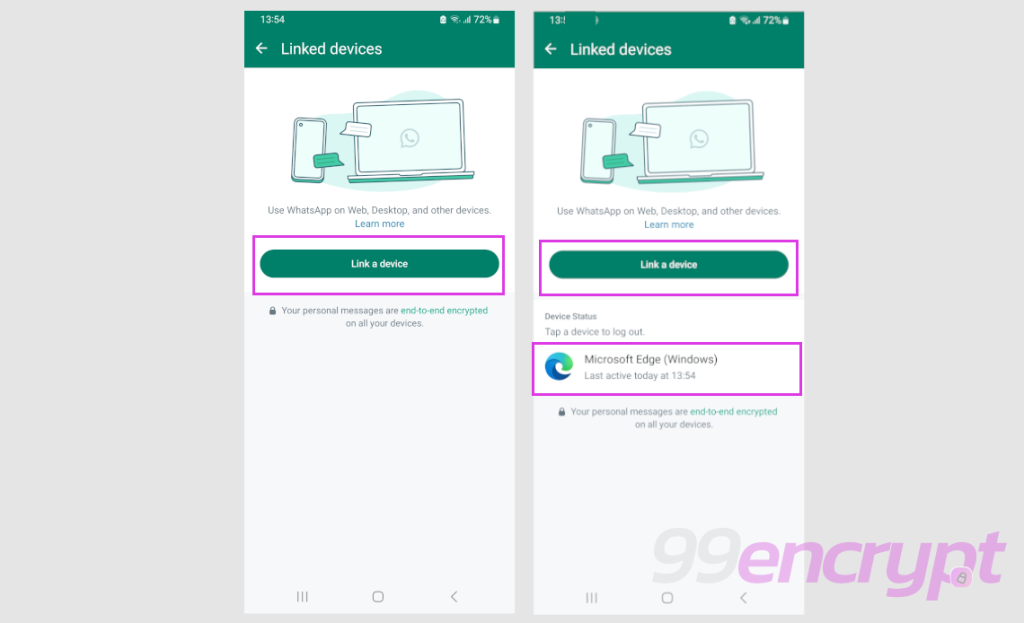
You will also notice this from the web browser you have connected with your WhatsApp account, which will appear on the list if you tap on it.
Step 2
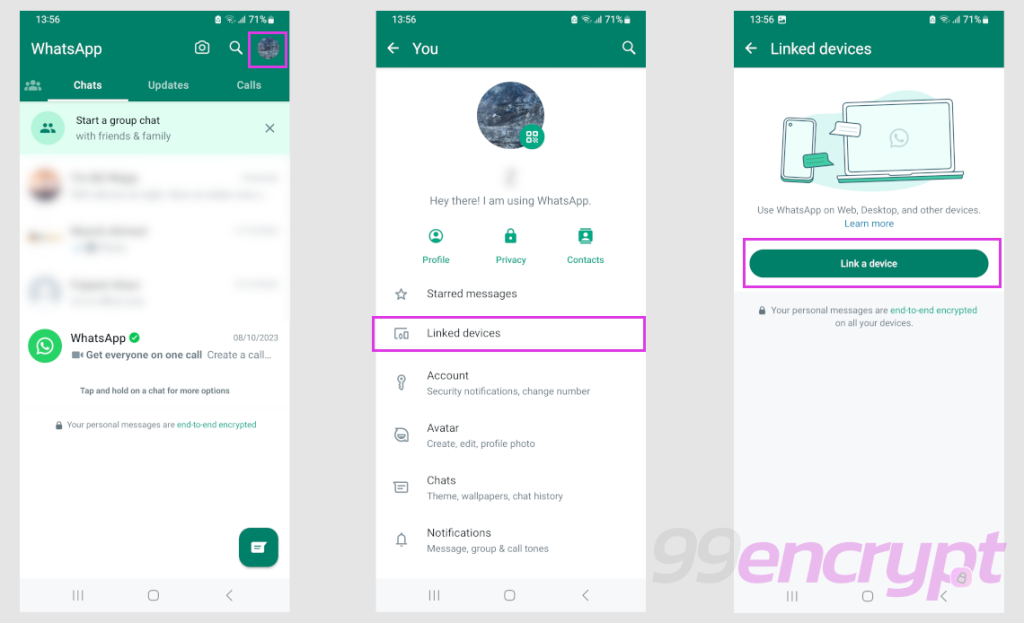
Firstly, you will need to access WhatsApp from your phone. Then click on the profile image or three dots (…).
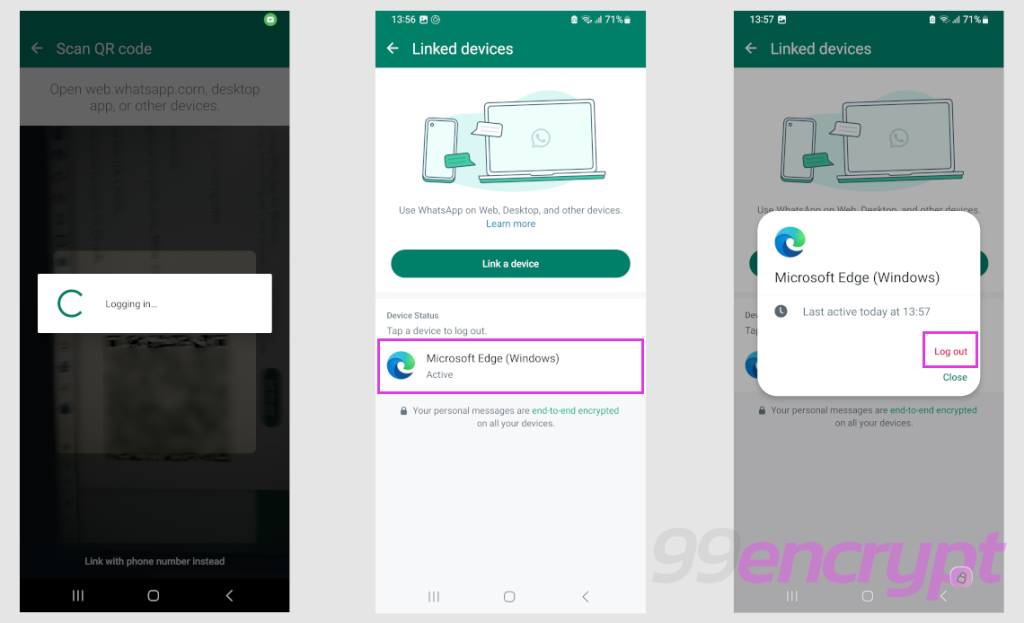
After that, you will need to tap on Linked Devices, and then you will be required to scan the QR image already displayed on your web-browser screen.
Once you successfully connect synchronised, it will successfully join your account.
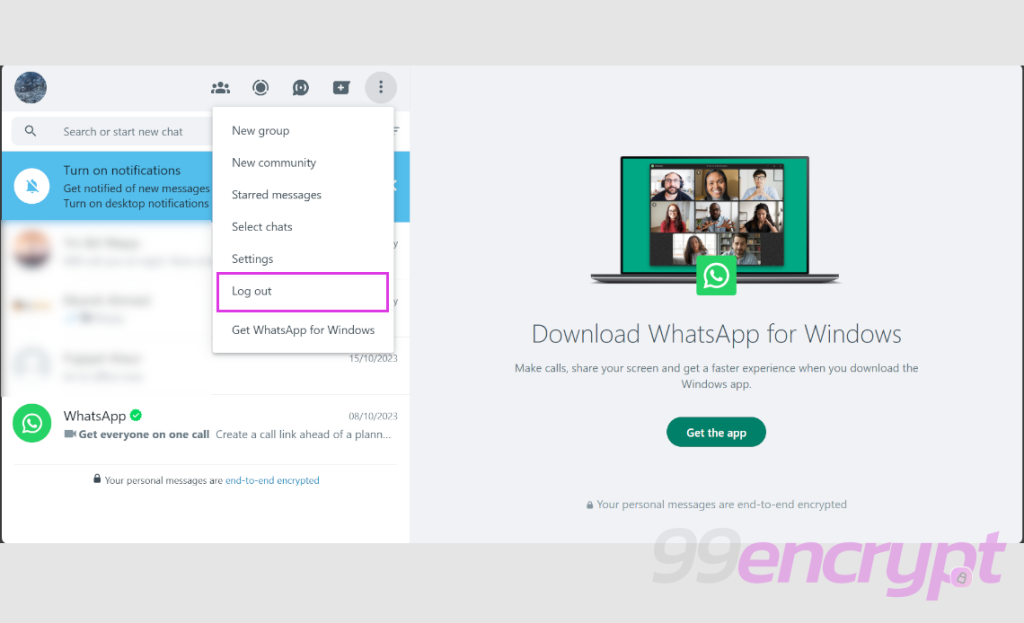
If you wish to end your session, you can either log out from the web browser connected with the WhatsApp account or from your phone while tapping on the Linked Devices and on the web browser where your current session is connected.
Then tap on logout.
Step 3 (Bonus Step)
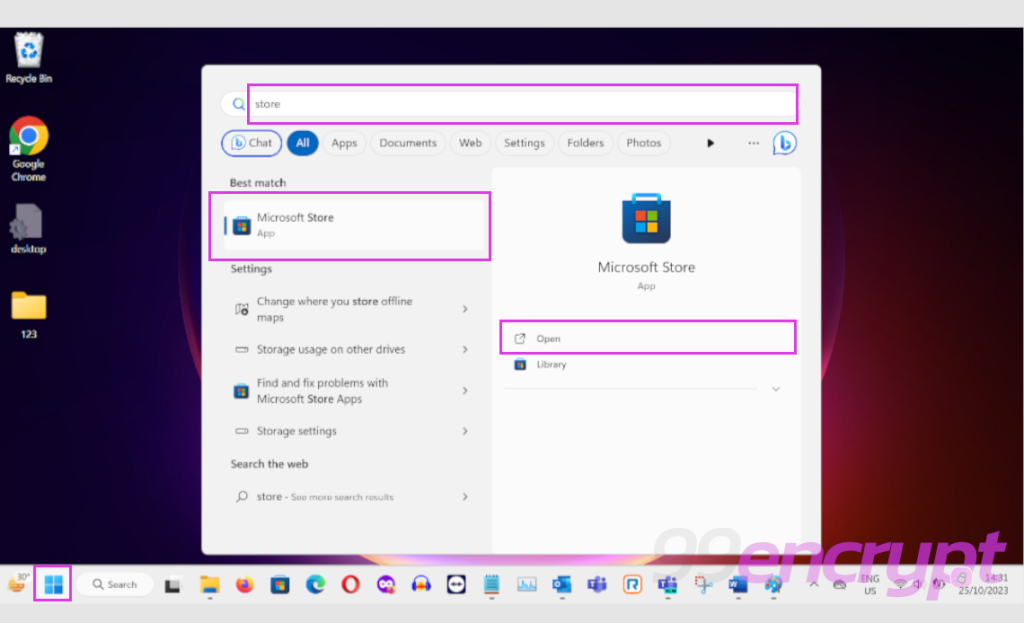
In this step, you can download the WhatsApp web version from the Microsoft Store.
If you wish to download it, then from the start menu, type “Microsoft Store”.
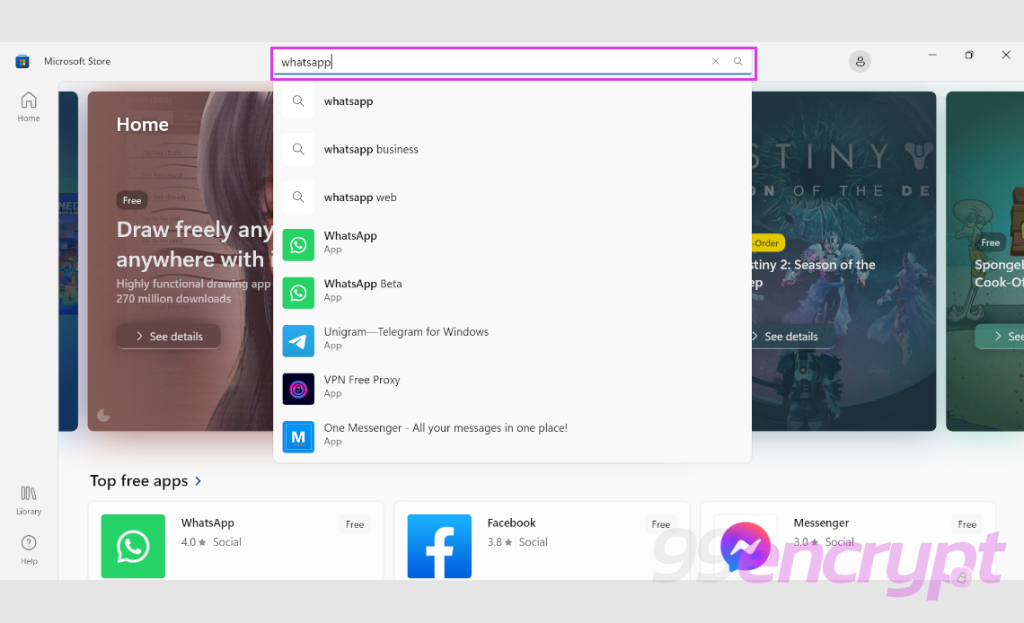
While in the Microsoft Store, you must search with the keyword “WhatsApp”.
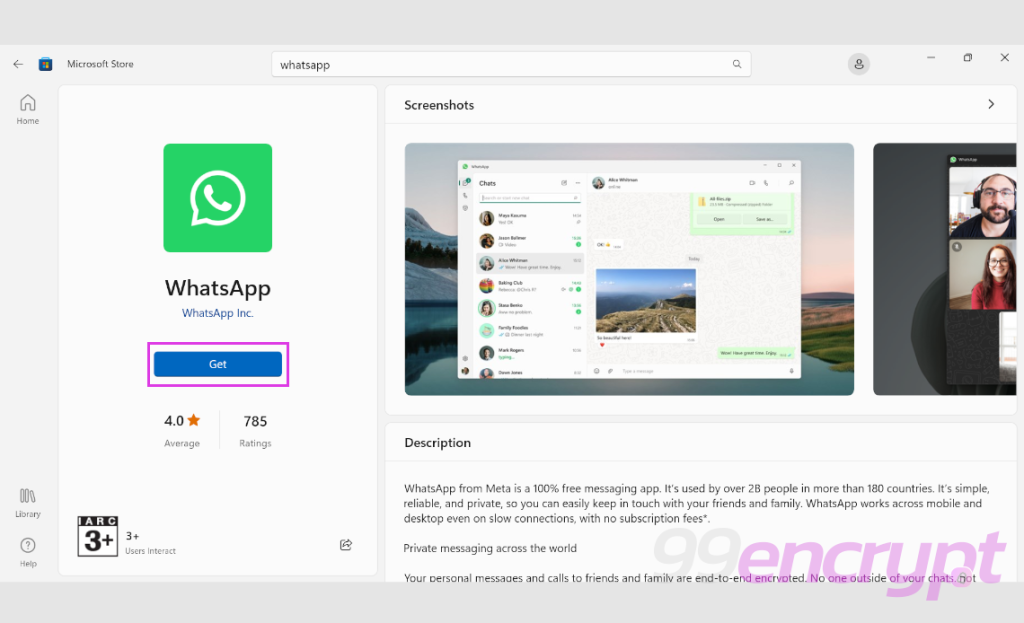
Once the WhatsApp application appears, click the “Get” button to install it.
After that, you will need to follow the same process you have followed to connect your WhatsApp account (Scanning QR code), and you will be able to use WhatsApp from the Windows Desktop.